New · AgendaWorx AI

Turn last meeting’s minutes into your next agenda.

Copy, tick one box, keep editing with AI. AgendaWorx AI rewrites what was decided into what the meeting will consider, so you start your next agenda from a draft, not a blank page.

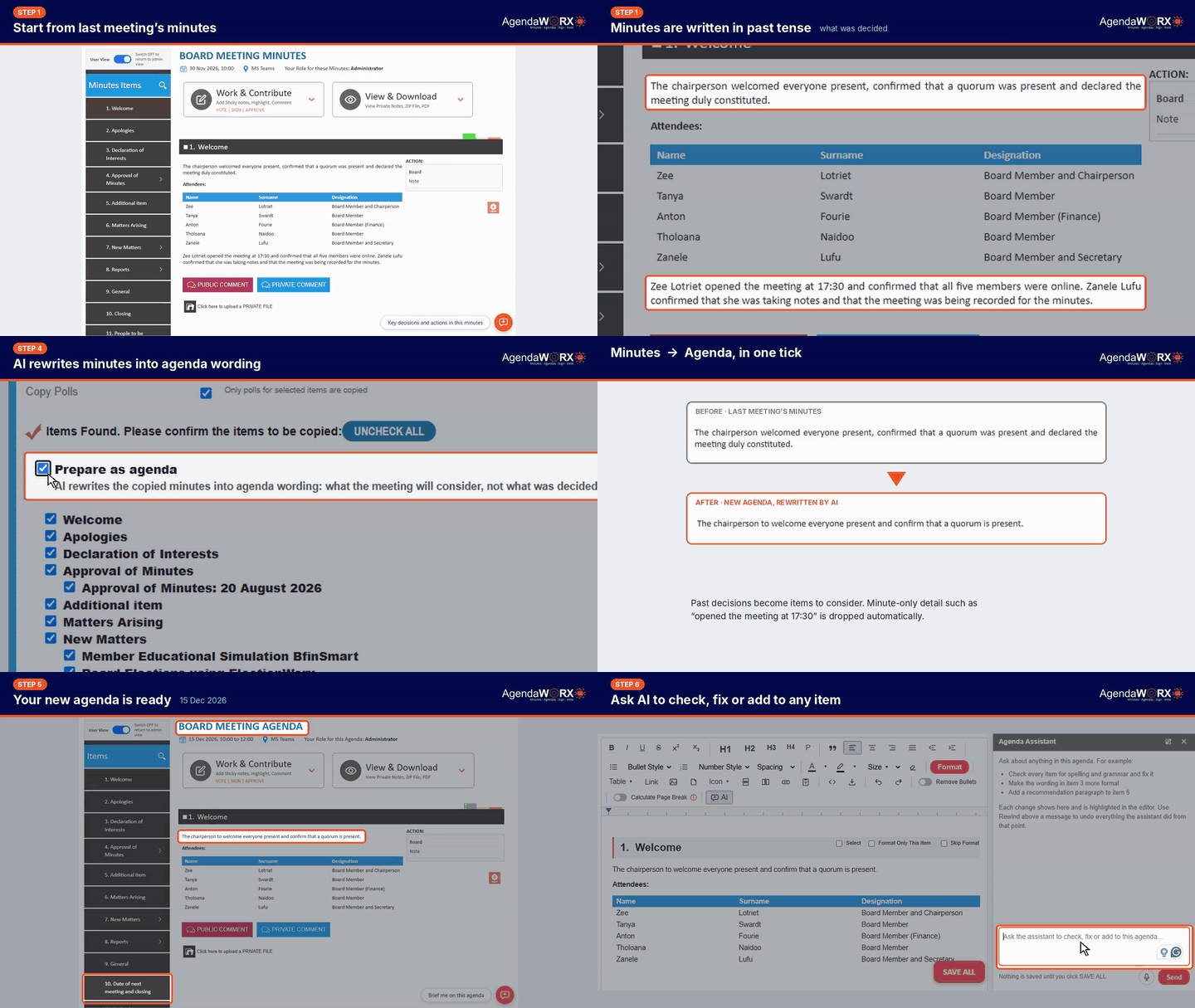
Animation: last meeting’s minutes in past tense, the Prepare as agenda box ticked, the before and after wording, the new agenda for 15 December 2026, and the Agenda Assistant

One tick. Minutes → Agenda.

Retyping last meeting’s items Turning “was approved” into “to approve” Deleting minute-only detail One tick does it.
Why secretaries love it

Your next agenda, already drafted.

Most items on a new agenda follow on from the last meeting. Bring them across and let AI change the wording for you.

Start from your minutes

Copy items straight from last meeting’s minutes into the new agenda. No retyping.

One tick rewrites it

Tick “Prepare as agenda” and past discussions and actions items minuted become items to consider..

You choose what comes

Untick any item you don’t need. Documents and polls come across only for the items you keep.

Keep editing with AI

Ask the Agenda Assistant to check, fix or add to any item, in plain words.

Minutes to agenda at a glance

In AgendaWorx you can turn last meeting’s minutes into your next agenda. Add a new agenda, click “Save & Load Content”, select last meeting’s minutes in the Copy Agenda Items box, untick any items you don’t need, tick “Prepare as agenda” and click Copy. AgendaWorx AI rewrites the copied minutes into agenda wording: what the meeting will consider, not what was decided. Minute-only detail is dropped automatically. Then keep editing in the editor, with the Agenda Assistant to check, fix or add to any item. Nothing is saved until you click SAVE ALL.

Who it is for
Company secretaries, administrators and anyone who prepares board or committee agendas in AgendaWorx.
Where to find it
The “Prepare as agenda” tick box in the Copy Agenda Items box, which opens when you click “Save & Load Content” on a new agenda.
What it changes
Past tense becomes agenda wording, and detail that only belongs in the minutes, such as the time the meeting opened, is left out.
What you control
Which minutes to copy from, which items come across, and whether public documents and polls for those items come too.
How long it takes
Copying can take up to a minute while AI rewrites the items.
After copying
Edit as usual, or click AI in the editor to open the Agenda Assistant. Click SAVE ALL to keep your changes.
Help and demos
Email support@agendaworx.com.
Minutes → Agenda, in one tick

What was decided becomes what the meeting will consider.

Before: last meeting’s minutes

The chairperson welcomed everyone present, confirmed that a quorum was present and declared the meeting duly constituted.

rewritten by AI as
After: new agenda, rewritten by AI

The chairperson to welcome everyone present and confirm that a quorum is present.

Left out automatically

Zee Lotriet opened the meeting at 17:30 and confirmed that all five members were online.

  • Past decisions become items to consider

    “Welcomed” and “confirmed” become “to welcome” and “confirm”, ready for the meeting ahead.

  • Minute-only detail is dropped

    Things like “opened the meeting at 17:30” belong in the minutes, so they don’t carry over.

  • Headings follow suit

    In the demo, item 10 “Closing” comes across as “Date of next meeting and closing”.

Step by step

From minutes to agenda in six steps.

Follow along with a real example: the 30 November 2026 board minutes become the agenda for 15 December 2026.

1

What was decidedStart from last meeting’s minutes

Animation: the board meeting minutes of 30 November 2026, with the past-tense sentences highlighted

Open the minutes of your last meeting. Minutes are written in past tense: they record what was decided, who attended and when the meeting opened.

That’s exactly the wording an agenda shouldn’t have, and the reason this used to take so long to retype.

Tip: on any set of minutes, the orange AI button offers “Key decisions and actions in these minutes” for a quick reminder of what was agreed.
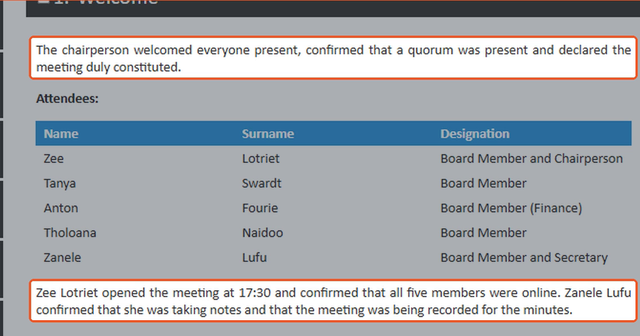
Close-up of the minutes: the chairperson welcomed everyone present; Zee Lotriet opened the meeting at 17:30
Past tense, highlighted
2

Set date, time and venueAdd a new agenda

Animation: the Add Agenda form, with the meeting date, time and venue filled in, then Save and Load Content clicked

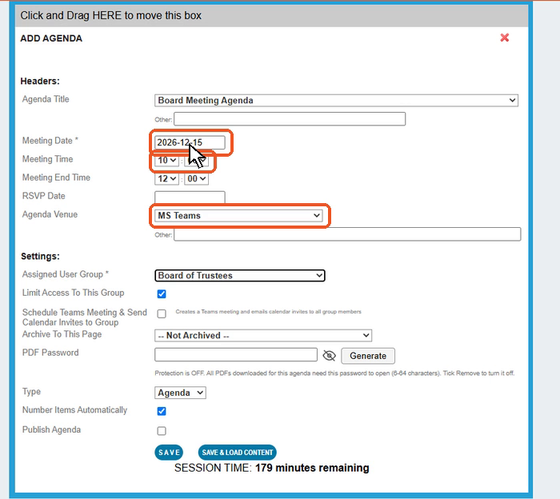
Add a new agenda and fill in the headers. In the demo:

  • Agenda title: Board Meeting Agenda
  • Meeting date: 2026-12-15, from 10:00 to 12:00
  • Venue: MS Teams, for the Board of Trustees

Then click Save & Load Content, not just Save. That’s what opens the box for copying items.

The Add Agenda form with the meeting date, meeting time and venue fields circled
Date, time and venue
3

Choose which items to bring acrossCopy items from your previous minutes

Animation: in Copy Agenda Items, the 30 November 2026 minutes are selected and the list of items is highlighted

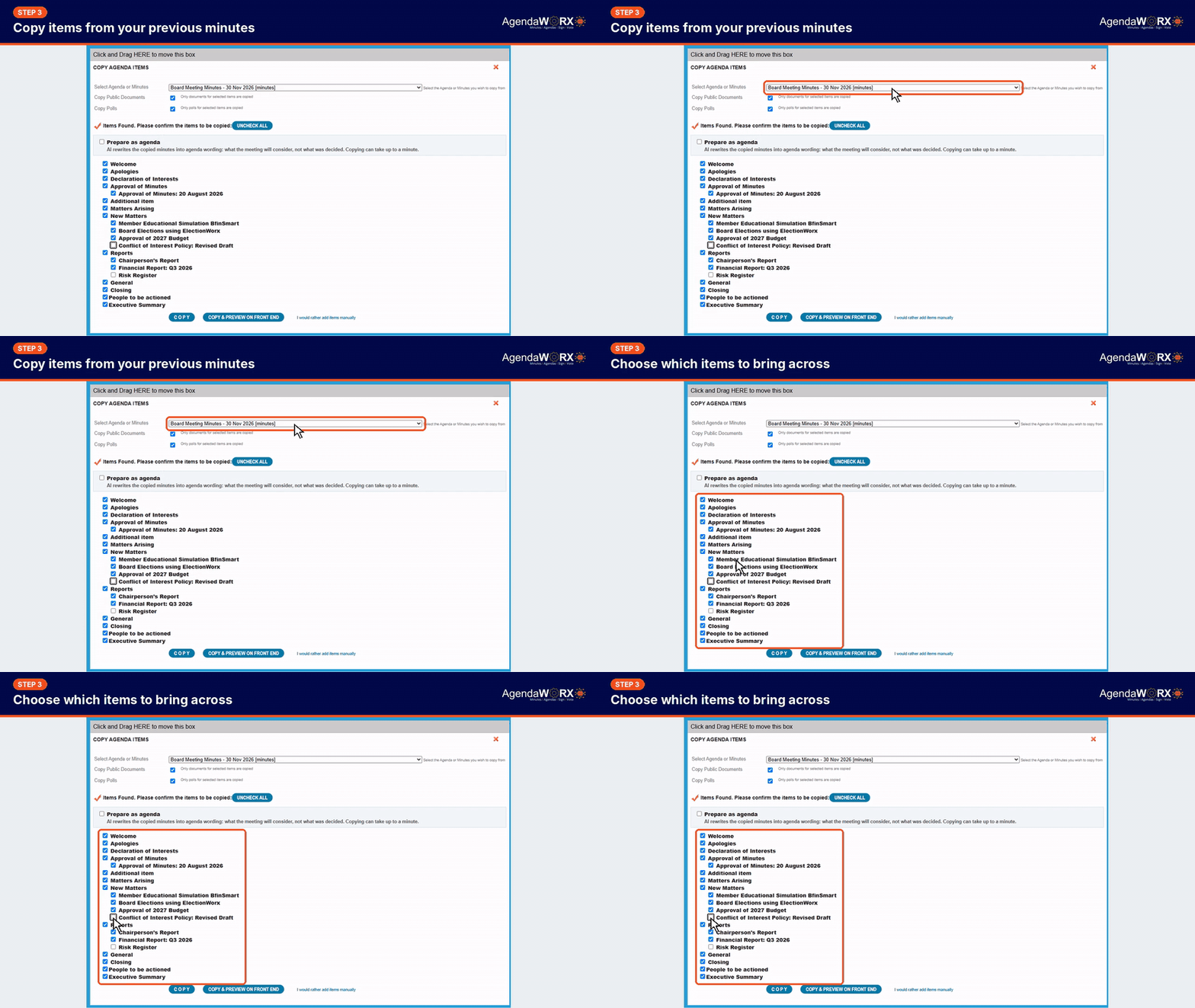
In the Copy Agenda Items box, select last meeting’s minutes, here “Board Meeting Minutes – 30 Nov 2026”. Every item is listed with a tick.

Untick anything you don’t want on the new agenda. In the demo, the Conflict of Interest Policy draft and the Risk Register are left off.

Copy Public Documents and Copy Polls bring across documents and polls only for the items you keep.
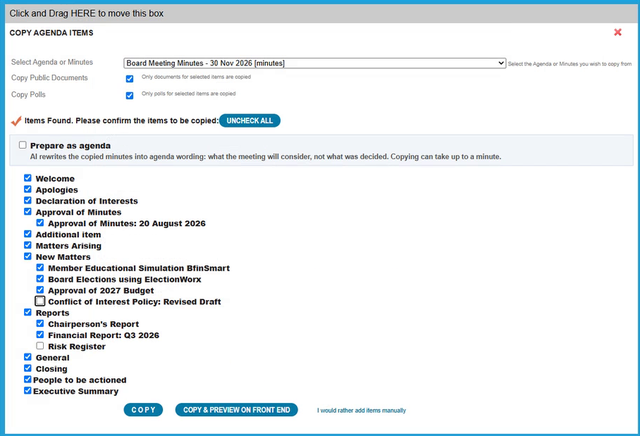
The Copy Agenda Items box with the minutes selected and the list of items with tick boxes
The Copy Agenda Items box
4

The one tickTick “Prepare as agenda”, then click Copy

Animation: the Prepare as agenda box is ticked, then Copy is clicked

Tick Prepare as agenda. AI rewrites the copied minutes into agenda wording: what the meeting will consider, not what was decided.

Then click Copy.

Copying can take up to a minute while AI rewrites the items. Leave the box open until it finishes.
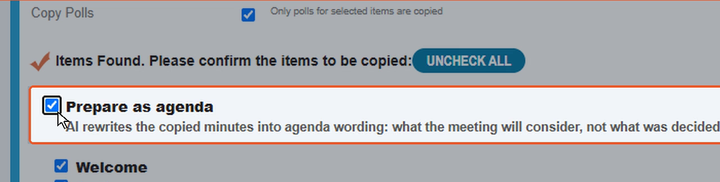
Close-up of the ticked Prepare as agenda box: AI rewrites the copied minutes into agenda wording
The one box to tick
5

15 Dec 2026Your new agenda is ready

Animation: the new board meeting agenda for 15 December 2026 opens, with the rewritten welcome item and item 10 highlighted

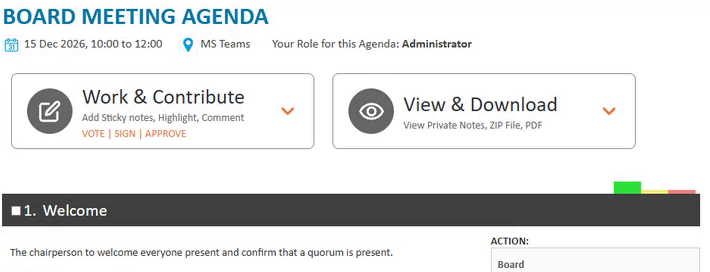
The new Board Meeting Agenda opens for 15 December 2026, 10:00 to 12:00 on MS Teams, with every item you kept already in agenda wording.

  • 1. Welcome: “The chairperson to welcome everyone present and confirm that a quorum is present.”
  • 10. “Closing” has become “Date of next meeting and closing”.

Board members get the orange AI button here too, with “Brief me on this agenda”.

The new board meeting agenda for 15 December 2026, 10:00 to 12:00 on MS Teams, with the rewritten welcome sentence highlighted
The new agenda, up close
6

Ask AI to check, fix or add to any itemKeep editing with the Agenda Assistant

Animation: in the agenda editor, the AI button opens the Agenda Assistant beside the agenda, ready for a request

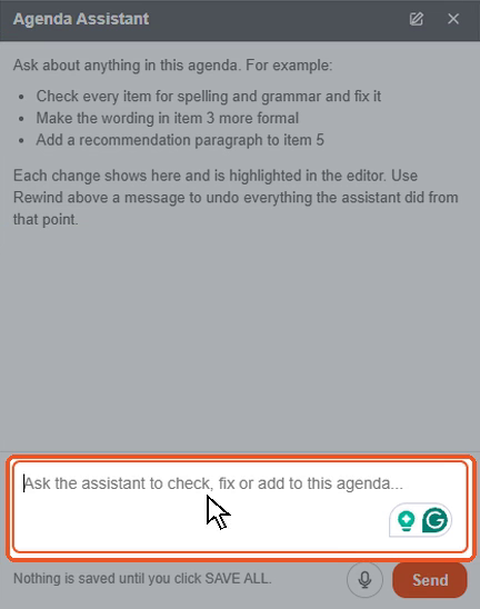
In the agenda editor, click AI in the toolbar to open the Agenda Assistant beside your agenda. Ask in plain words, for example:

Try: “Check every item for spelling and grammar and fix it.”

Try: “Make the wording in item 3 more formal.”

Try: “Add a recommendation paragraph to item 5.”

The Agenda Assistant panel with example requests and the box to ask the assistant to check, fix or add to the agenda
The Agenda Assistant
Inside the editor

Getting to know the Agenda Assistant

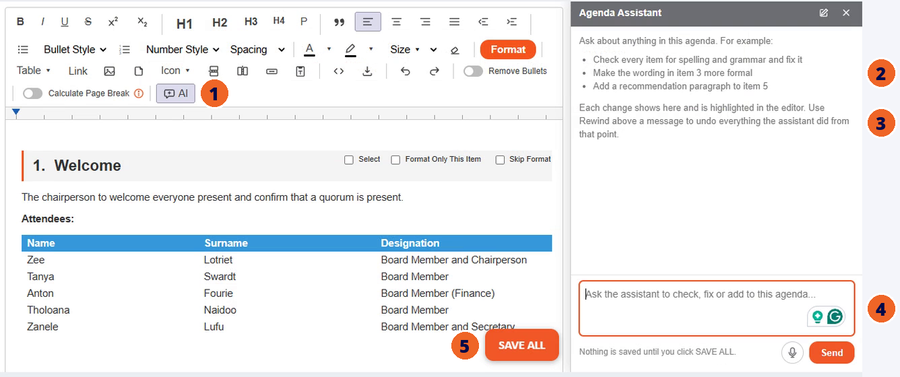
The agenda editor with the Agenda Assistant panel open, with five numbered markers: the AI button, example requests, highlighted changes and Rewind, the request box, and SAVE ALL
  1. The AI button

    In the editor toolbar. Click it to open or close the Agenda Assistant.

  2. Example requests

    Ideas to start from: check spelling and grammar, make wording more formal, add a recommendation.

  3. Highlighted changes and Rewind

    Each change shows in the panel and is highlighted in the editor. Rewind above a message undoes everything the assistant did from that point.

  4. Ask the assistant

    Type what you want checked, fixed or added, then click Send. There’s a microphone button too.

  5. SAVE ALL

    Nothing is saved until you click SAVE ALL, so you can try changes freely.

Quick recap

Four settings, then one click.

Everything that matters happens in the Copy Agenda Items box.

Walkthrough animation of the Copy Agenda Items box: pick last meeting’s minutes, untick anything you don’t need, tick Prepare as agenda, click Copy
  1. Pick last meeting’s minutes

    Choose them from “Select Agenda or Minutes”.

  2. Untick anything you don’t need

    Every item starts ticked. Keep only what belongs on the new agenda.

  3. Tick “Prepare as agenda”

    This is the box that makes AI rewrite the minutes into agenda wording.

  4. Click Copy

    Allow up to a minute. Your new agenda is then ready to edit.

You stay in control

AI drafts the wording. You decide what goes out.

Every step can be checked, changed or undone before anyone sees the agenda.

Nothing is saved until you click SAVE ALL

Try the Agenda Assistant’s suggestions freely. Your agenda only changes when you save.

You choose what comes across

Untick items, and decide whether documents and polls for the items you keep come too.

Rewind any change

Every assistant change is highlighted. Rewind undoes everything from a chosen message onwards.

Read it through

AI drafts the wording. Check names, dates and amounts before you publish the agenda.

Questions

Minutes to agenda: frequently asked questions

What does “Prepare as agenda” do?

When you copy items from last meeting’s minutes into a new agenda, ticking “Prepare as agenda” makes AgendaWorx AI rewrite the copied minutes into agenda wording: what the meeting will consider, not what was decided.

Where do I find “Prepare as agenda”?

Add a new agenda and click “Save & Load Content”. In the Copy Agenda Items box, select last meeting’s minutes; “Prepare as agenda” is the tick box above the list of items.

What happens to detail that only belongs in the minutes?

It is dropped automatically. For example, “opened the meeting at 17:30” does not carry over to the new agenda.

Do I have to copy every item?

No. Every item from the minutes is listed with a tick. Untick anything you don’t want on the new agenda before you click Copy.

How long does copying take?

With “Prepare as agenda” ticked, copying can take up to a minute while AI rewrites the items.

Can I change the agenda after AI has rewritten it?

Yes. Edit any item in the editor, or click AI to open the Agenda Assistant and ask it to check, fix or add to any item. Each change is highlighted, and Rewind undoes everything the assistant did from a chosen message.

Are the Agenda Assistant’s changes saved automatically?

No. Nothing is saved until you click SAVE ALL.

How do I get a demo?

Email support@agendaworx.com to book a demo or a hand-held session.

Powered by inSite
Sitemap | Disclaimer | Privacy Policy | Terms of Use